


Presentation Creation
In-person conferences have their own set of challenges. Virtual conferences have a different kind of pressure entirely.
When you're presenting online, your audience is one click away from their inbox, their Slack messages, and every other tab they have open. You're not filling a room. Instead, you're competing for a rectangle on someone's screen. The way most presenters handle this is typically by turning off their camera, sharing their screen, reading off slides, which makes the problem worse. It removes the one thing that keeps people engaged: you.
That's exactly the problem Prezi Video was built to solve. Instead of disappearing behind a shared screen, Prezi Video places you directly alongside your content (like a news anchor or a weather presenter) so your audience sees both your visuals and your face at the same time. No screen sharing. No disconnected slides. Just you and your content, together, in your camera feed.
This checklist covers everything you need to do before, during, and at the end of a virtual conference talk or video conferencing session using Prezi Video, from setting up your content and environment to sharing your presentation after the session ends.

1. Start With Prezi Video, Not a Slide Deck
The first thing to understand about Prezi Video is that it fundamentally changes how virtual presenting works. When you connect Prezi Video to your conferencing tool, like Zoom, Microsoft Teams, Google Meet, Webex, GoToWebinar — it appears in the camera list as Prezi Camera. Your audience sees your camera feed, with your content displayed right alongside you. You're not asking them to watch a screenshare while your face disappears into a small tile in the corner.
To get started:
- Download the Prezi Video desktop app
- Build or import your content (more on this below)
- Open your conferencing tool, go to camera settings, and select Prezi Camera from the list
- That's it, your content and your face are now in the same frame
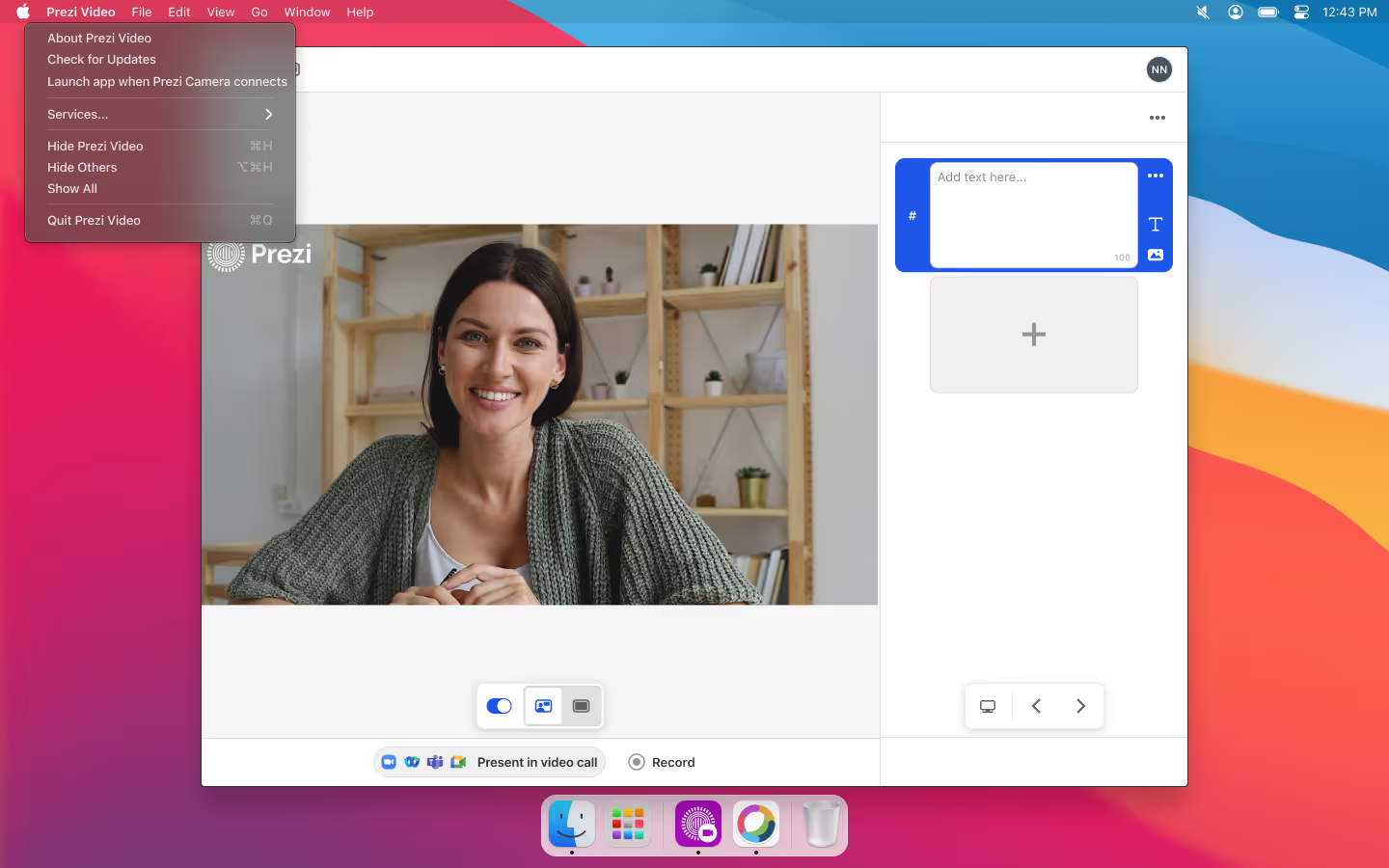
You can navigate through your content using the arrow keys on your keyboard, the arrows in the Prezi Video sidebar, or by clicking directly on any element you want to zoom to. To keep your setup clean, use sidebar-only mode to hide the main Prezi Video window — you'll still see your upcoming slides and navigation controls next to your video call, without having two full windows open simultaneously.
Pro tip: Prezi Video also supports live editing during a call. If you need to pull up a new visual, add a text callout, or drop in a reaction in real time, you can do it without leaving the meeting.
2. Optimize Your Content for the Video Format
A presentation designed for a projector screen is not the same as a presentation designed for a video call. When your face shares the frame with your content, layout decisions that work on a full slide can compete with, or cover, you entirely.
Keep content out of the center and lower left. That's where your face will appear. Place text, charts, and key visuals on the right side and upper portions of the frame. Leave breathing room. A crowded layout means your content fights with your face for attention — and both lose.
Use less text, not more. Text-heavy slides are hard to read on a compressed video feed, and long copy pulls eyes away from you. Short headlines, single data points, and bold visuals work far better. If you need to communicate more, use presenter notes (more on that below) rather than putting everything on screen.
Contrasting colors matter more in video. Compression artifacts from video calls can mute subtle color differences. Use high-contrast combinations — dark on light or light on dark — and avoid color pairings that are difficult for colorblind viewers (red/green, blue/yellow).
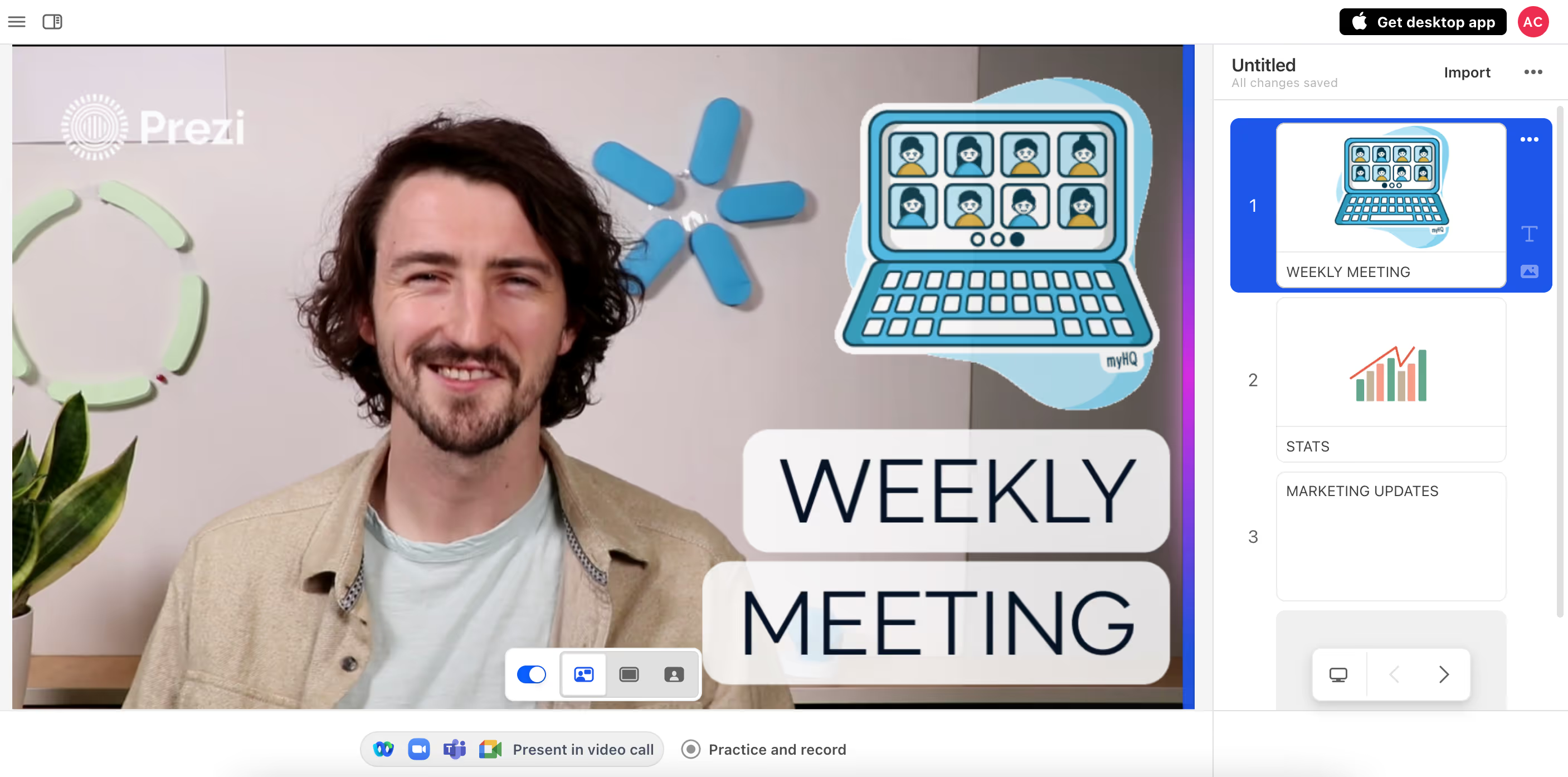
Use Floating vs. Full mode intentionally. Prezi Video gives you two primary view modes during a live call:
- Floating mode — you and your content appear side by side, ideal for illustrative visuals, storytelling frames, and moments when your presence matters as much as the content
- Full mode — your content takes up the full frame, best for detailed charts, data, or anything that requires close reading
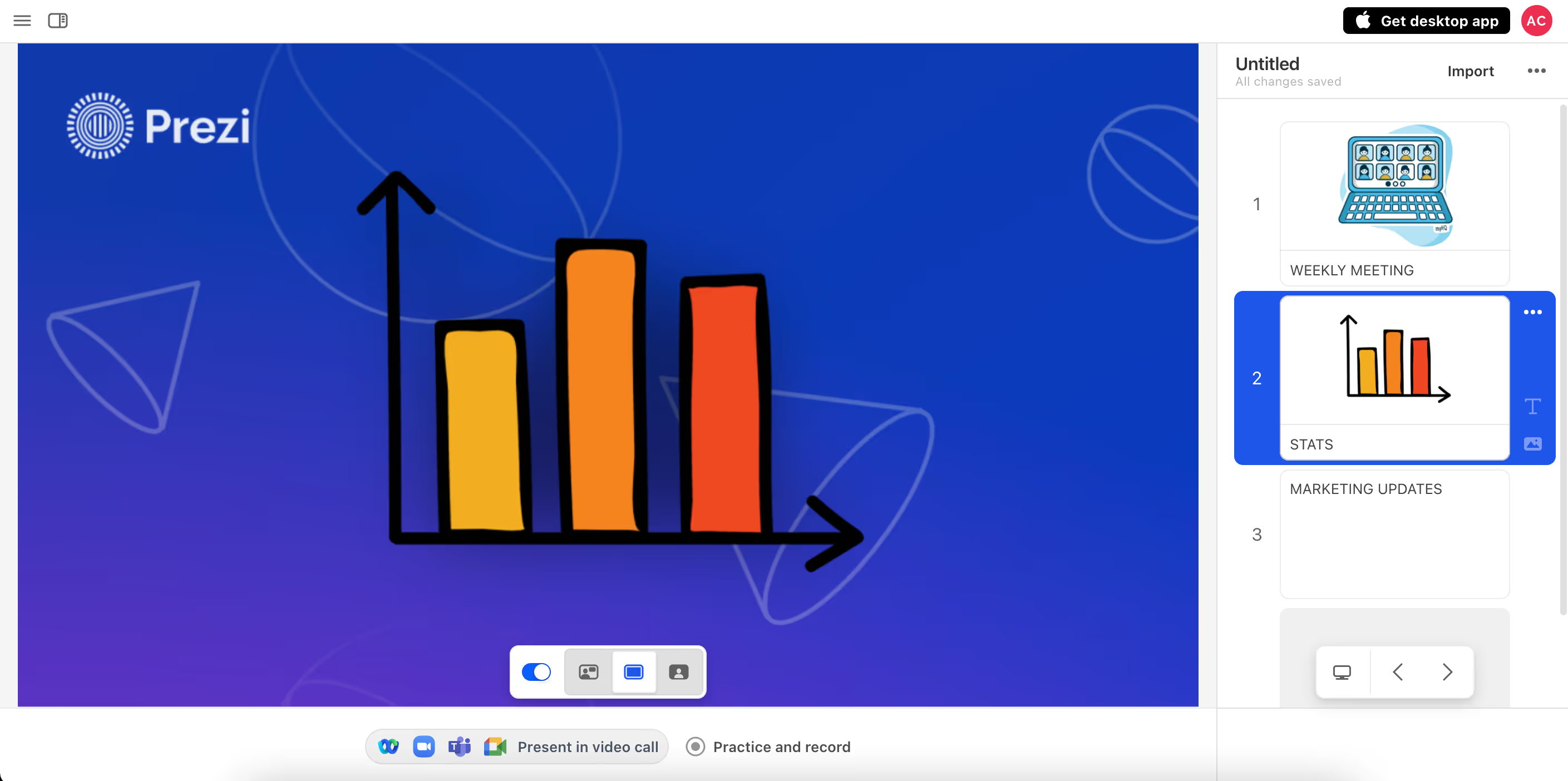
Switch between them as the content demands it. The toggle is in the Prezi Video sidebar.
If you're importing an existing deck, Prezi Video accepts PowerPoint, Google Slides, and Prezi presentations directly. When you import, Prezi Video removes the slide background and places your content over your camera feed. Check every slide after import, you may need to rearrange elements so they don't obscure your face. Right-click any frame and choose Detach content from frame to move or resize elements freely.
3. Set Up Your Presenter Notes
Presenter notes in Prezi Video are one of its most underused features, and one of the most valuable for virtual conferences, where you can't glance at a printed page without breaking eye contact with the camera.
How to add presenter notes:
- In the editor, click More in the top toolbar and select Presenter notes
- Or click the Notes button in the bottom right corner of the canvas
- Or hover over any step in the left sidebar timeline, open the three-dot menu, and select Presenter notes
Type your cues, talking points, data references, or transition reminders directly into the notes panel. You'll see a step preview at the top of the panel so you always know which frame you're adding notes to. Prezi saves notes automatically as you type.
During a live call, your presenter notes appear at the top of the Prezi Video window, and are visible only to you, not your audience. You can also pop out the notes into a separate window and position it wherever works best on your screen. If you're using two monitors, move the notes to your second display.
Use notes to:
- Flag slide transitions and what's coming next
- Keep stats, quotes, or data points close at hand without putting them on screen
- Note time cues ("~10 min mark — move to demo")
- Capture Q&A prompts you want to come back to
4. Add a QR Code Slide for Easy Sharing
Virtual conference audiences may want to revisit your presentation, share it with a colleague, or access a resource you referenced. A QR code on your final slide makes this frictionless, they can scan it while you're still on screen during Q&A.

To add a QR code in Prezi: In the editor, click the Share button in the upper-right corner and select Insert QR Code . Prezi automatically generates a code linking to your current presentation and lets you insert it directly onto your canvas.
Leave this slide visible throughout your Q&A session. In Prezi Video, you can hold on any frame as long as you need to, ust stop navigating and the frame stays on screen while you take questions.
A few notes on making the QR code work in video:
- Make it large enough to be scannable from a phone held up to a monitor, bigger than you think is necessary
- Use a dark code on a light background for reliable contrast
- Test it yourself before the session by scanning from your own phone
- For private presentations, the QR code creates a trackable view link so you can monitor engagement after the session
5. Get Your Technical Setup Right
A great presentation in a poor technical environment is a frustrating experience for everyone. Virtual conferences are especially unforgiving, if your audio cuts out or your video lags, you lose the room instantly.
Internet connection:
- Use a wired ethernet connection if at all possible. Wi-Fi is fine for casual calls; for a conference session, it introduces unnecessary risk.
- Close every application and browser tab you're not using. Streaming video is bandwidth-intensive; other apps competing for resources will degrade your quality.
- Run a speed test before your session. For stable Prezi Video quality, you want at least 10 Mbps upload.
- If your connection is unreliable, let the conference organizer know in advance and agree on a backup plan.
Camera and audio:
- Camera positioned at eye level — not looking up from a laptop on a desk
- Audio tested: use a dedicated headset or external microphone over built-in laptop audio when possible
- Mute notifications, email alerts, and any system sounds that could interrupt
- Test your Prezi Camera feed in your conferencing tool before the session starts — join a test call or use the tool's camera preview
Prezi Video-specific checks:
- Prezi Video desktop app is open and content is loaded before the meeting starts
- "Prezi Camera" selected in your conferencing tool's camera settings
- Disable any blurred background or virtual background in your conferencing tool — these will blur or cover your Prezi Video content. If you want a background, use Prezi Video's own built-in virtual background feature instead.
- Presenter notes loaded and visible in the Prezi Video sidebar
- Sidebar-only mode enabled so you're not juggling two full windows during the call
- QR code slide confirmed as the last frame
6. Set Up Your Background and Lighting
In a virtual conference, your physical environment is part of your presentation. A cluttered background, a window behind you blowing out your face, or uneven lighting will undercut everything you've done in your content.
Lighting:
- Face your light source, don't sit with it behind you. A window behind you silhouettes your face and makes you unreadable on camera.
- Natural light from a window in front of you is ideal. A desk lamp positioned slightly to one side works well if you're presenting in the evening or in a darker space.
- Even, soft light beats bright direct light. Avoid overhead lighting alone — it casts unflattering shadows.
Background:
- Clear and clean is always the right call. Your audience's eye will wander to anything interesting, cluttered, or moving behind you.
- A plain wall, a simple bookshelf, or a neutral backdrop works. Branded backgrounds can be a nice touch for professional events.
- If your real environment is messy or distracting, use Prezi Video's built-in virtual background or blur feature. Note: this is Prezi Video's own feature, not your conferencing tool's — the conferencing tool's blur will cover your Prezi content.
- A physical green screen gives the cleanest result if you use a virtual background regularly.
Camera framing:
- Position yourself so there's slightly more space on the side where your Prezi content will appear — this creates a natural visual balance between you and your slides.
- Your eyes should be in the upper third of the frame, not dead center and not cut off at the top.
- Look into the camera, not at your own face on screen. Put your notes and your conferencing window as close to your camera as possible to minimize eye drift.
7. During the Session: How to Present With Prezi Video
A few things that make a real difference once you're live:
You have two ways to get started. You can either start with the content visible or go for a "wow" factor approach and have your slides appear next to you after you've been introduced.
Slow down. Online presentations need more deliberate pacing than in-person talks. Pauses read differently on video — use them intentionally after key points to let ideas land.
Talk to the camera, not the screen. Your eyes going to your monitor constantly breaks the sense of connection. The more you can speak from memory or from brief notes positioned near your camera, the more present you'll feel to your audience.
Use your view modes. Switch to Full mode when you want your audience to focus entirely on a chart or data point. Switch to Floating mode when you want to make a personal point or tell a story. The toggle takes one click.
Keep your QR code frame on during Q&A. Stay on that final slide. It keeps your session information and sharing link in front of the audience while you take questions — and it signals clearly that the formal presentation is over without logging off.
Your Full Virtual Conference Checklist
Content and Prezi Video setup:
- Prezi Video desktop app downloaded and content loaded
- Slides optimized for video format (content positioned right/upper frame, face visible)
- Text minimal; high-contrast colors used throughout
- Presenter notes added to all key frames
- QR code inserted on final slide and tested
Technical:
- Wired internet connection (preferred) or stable Wi-Fi confirmed
- Prezi Camera selected in conferencing tool camera settings
- Conferencing tool's blur/virtual background disabled
- Camera at eye level, framing balanced
- Audio tested (headset or external mic preferred)
- Notifications and system alerts silenced
- Sidebar-only mode enabled in Prezi Video
Environment:
- Lighting facing you, not behind you
- Background clear, clean, and distraction-free
- Prezi Video virtual background or blur set up if needed
During the session:
- Notes accessible and positioned near camera
- QR code slide held on screen throughout Q&A
What is Prezi Video and how is it different from a regular screen share? Prezi Video places you and your content in the same camera feed — similar to how a news anchor appears alongside graphics on screen. Unlike screen sharing, your face stays visible throughout the presentation, which keeps your audience more engaged and eliminates the "talking over slides" dynamic common in virtual meetings.
Which video conferencing tools work with Prezi Video? Prezi Video is compatible with Zoom, Microsoft Teams, Google Meet, Webex, and GoToWebinar. Once the Prezi Video desktop app is installed, it shows up as "Prezi Camera" in your conferencing tool's camera settings — just select it like you would any other camera.
Why should I turn off my conferencing tool's virtual background when using Prezi Video? Your conferencing tool's blur or virtual background processes your entire camera feed — including the Prezi Video content layer — which means it will obscure or distort your slides. Use Prezi Video's own built-in virtual background feature instead, which is applied before the feed reaches the conferencing tool.
How do I add presenter notes in Prezi Video? In the editor, click "More" in the top toolbar and select "Presenter notes," or click the Notes button in the bottom right corner of the canvas. During a live call, notes are visible only to you at the top of the Prezi Video window. You can also pop them out into a separate window — useful if you're presenting with two monitors.
What's Floating mode vs. Full mode in Prezi Video? Floating mode shows you and your content side by side, keeping your presence in the frame alongside visuals. Full mode expands your content to fill the entire camera feed — better for charts or detailed data that need close reading. You can toggle between both mid-presentation using the sidebar.
How do I make sure my QR code slide works for a virtual audience? Make the QR code large enough to scan from a phone held up to a monitor — bigger than feels necessary. Use a dark code on a light background for contrast, and test it yourself before the session. Leave the slide visible throughout your Q&A period so attendees can scan it while you take questions.
What internet speed do I need for Prezi Video? For stable quality, you'll want at least 10 Mbps upload speed. A wired ethernet connection is strongly preferred over Wi-Fi — it removes the variability that can cause video lag or dropped frames during a live session.
Can I edit my Prezi Video presentation while live on a call? Yes. Prezi Video supports live editing during a call. You can pull up new visuals, add text callouts, or insert reactions in real time without leaving the meeting.